TimeMatrix Features · Practical Tutorial
Market Screener: A Step-by-Step Tutorial
Choose a market, apply filters, save a screening preset, and carry a candidate into chart and watchlist research.
This guide is public. The Market Screener workspace and account presets require member access. Available fields depend on the asset type and retained data.
Step 1
Choose the market before applying filters
Open Screeners → Screener. A useful first exercise is to build a shortlist of US stocks in one sector, then inspect the resulting companies individually.
Market selects an asset class; Nation selects listing-country scope. They answer different questions. Company valuation fields are not interchangeable with crypto or Forex metrics.
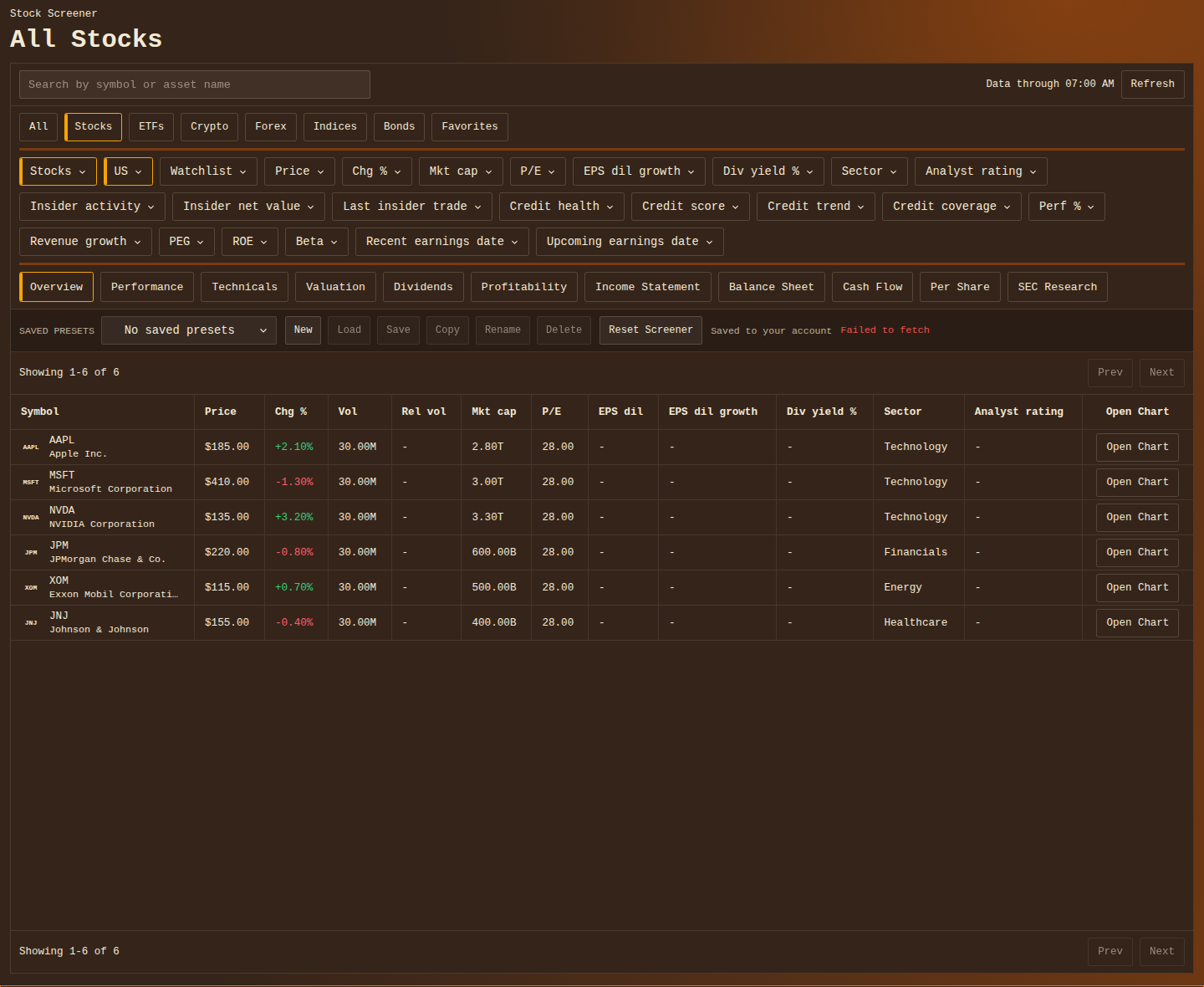
The screenshot shows the starting US stock list before a sector filter is applied. The chip row is where you add conditions; the result table is below Saved presets. Example prices and companies illustrate the layout, not a current screening result.
- Choose Stocks and Nation: US.
- Leave Watchlist at Any for a broad search. Selecting a saved watchlist restricts the screen to that list.
- Open the Sector filter and choose one available sector, such as Technology. Check the result count before adding more conditions.
Step 2
Add one condition at a time
Use the filter chips to set a price range, market-cap band, valuation rule, or another available metric. Read each option’s boundary wording: Above excludes the boundary, while and above includes it.
For example, compare the stock list before and after one market-cap condition, then add a P/E condition. This is an exercise in understanding the screen, not a recommendation to buy the remaining names.
A missing value is not zero. Adding a numeric filter can remove companies whose corresponding metric is unavailable. If the shortlist becomes empty, remove the newest condition and inspect coverage before changing several rules at once.
- Add one filter and note how the result count changes.
- Sort an available table column and move through result pages. Filtering and sorting apply across the eligible universe, not just the visible rows.
- Use SEC Research when studying reported insider activity or credit-health fields. Read the period and coverage before comparing values.
Step 3
Save a reusable screen
A saved preset stores the screen configuration, not a frozen copy of quotes or results. Loading it later applies its rules to the data then available.
Reset Screener clears the current screen configuration and selected-preset association. It does not delete saved presets or watchlists.
- Select New in Saved presets and give the current screen a descriptive name.
- After adjusting a rule, use Save to update the selected preset. Use Copy for a separate version.
- Use Load to reapply a selected preset and check that its rules and market are the ones intended.
- Check the save status. A failed or pending save is not proof that another device will receive the changes.
Step 4
Move a candidate into chart and watchlist research
Select Open Chart on a result to inspect its price history. Confirm the symbol and asset type so similarly named instruments are not confused. Open Fundamentals where available to examine the company behind a numerical screen.
To retain a candidate, use the chart watchlist’s Add Symbol control and select that same instrument. Back in Screener, choose the saved list with the Watchlist filter to apply screening rules to it. There is no bulk transfer of the entire result table in this walkthrough.
- Open one candidate’s chart and examine its available history.
- Add the selected symbol to your intended chart watchlist.
- Return to Screener, choose that watchlist, and review which saved names satisfy the filter set.
Step 5
Check data context before comparing candidates
The Screener reads stored market snapshots and reported fundamentals. Refreshing the page is not a promise of a live trade or a new company filing. Check available timestamps and reporting periods.
In SEC Research, open-market insider buying and selling are distinct from grants, exercises, gifts, and proposed sales. N/A on an unsupported asset is expected.
Record the preset name, filters, market, nation, sort, and observation date. A good shortlist is the beginning of research; a matching filter is not an assessment of future performance.
Common questions
Does a saved preset preserve the results I see today?
No. It preserves screening rules and view settings. Later results can change as underlying snapshots and company data change.
Why does adding a filter remove a company?
It may fail the selected rule or lack the needed value. Inspect the relevant metric; missing data must not be treated as zero.
Can I screen an existing watchlist?
Yes. Choose the saved watchlist in the Watchlist filter. Other active filters still apply to that list.